


Display Control Panel Indicators
1. To view the weekly behavior of specialists and the services provided, with the Monitor role, enter the AFLS web console, in the Panel de Control from the Header menu, select the Orders.
2. In the order filters in the main menu, select a vendor, and in the information view you can see the graphical information of work order management indicators. It will only be possible to select the providers that are linked to the monitor that is logged in.
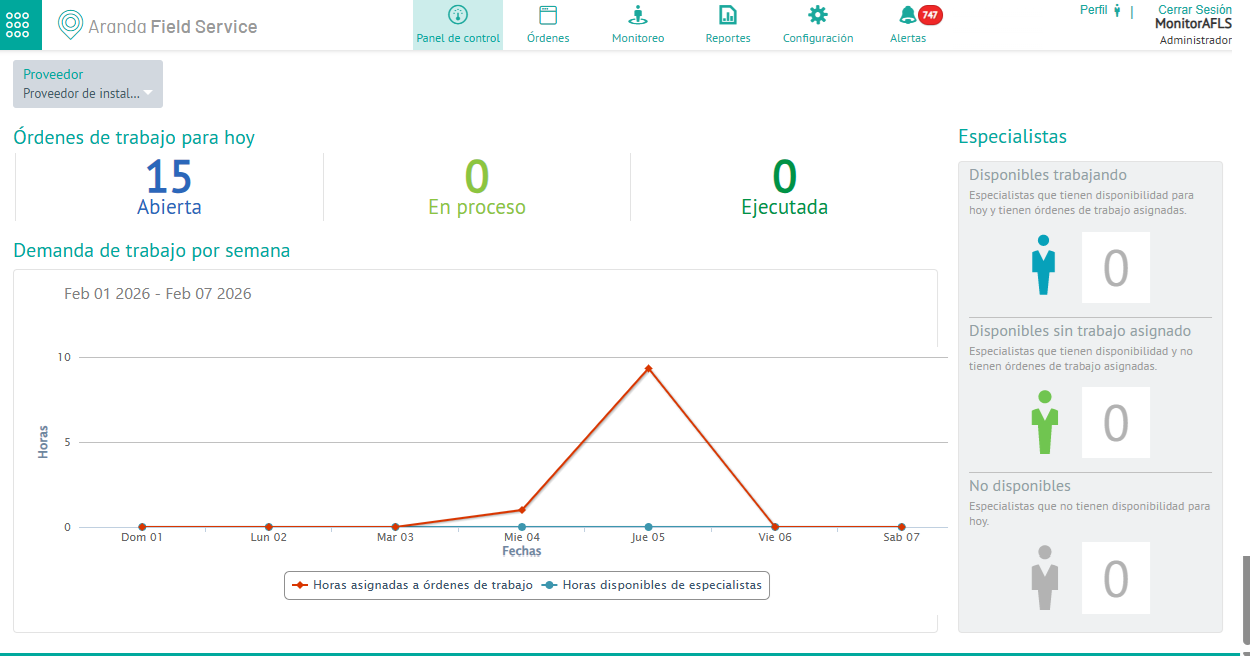
Work Orders for Today
This section provides a summary of the status of work orders scheduled for the day of the query and specifies how many orders are in the Open, In Process, or Executed status.
Demand for work per week
This section presents a graph of the relationship between demand (allocated hours) and configured availability (available hours) within AFLS. Horizontal axis: Days of the current week. Vertical axis: Hours.
- Assigned Hours: Sum of the number of hours in which specialists are busy (either in care or travel) for each day of the week.
- Available Hours: Sum of the availability of the specialists for each day of the week and includes the availability configured in the groups to which the specialists belong.
Specialists
This section presents a summary of the current status of the selected vendor’s specialists and specifies how many of them are Available working, Available without assigned work, or Unavailable.