


1. To achieve a correct planning and scheduling of work orders, with the Monitor role, enter the AFLS web console, in the section Monitoring from the main menu, select the Planning.
2. In the information view, you can view the records of specialists in the field or through the Search Perform Query field of specialists with planned orders (in process, expired, or about to expire)
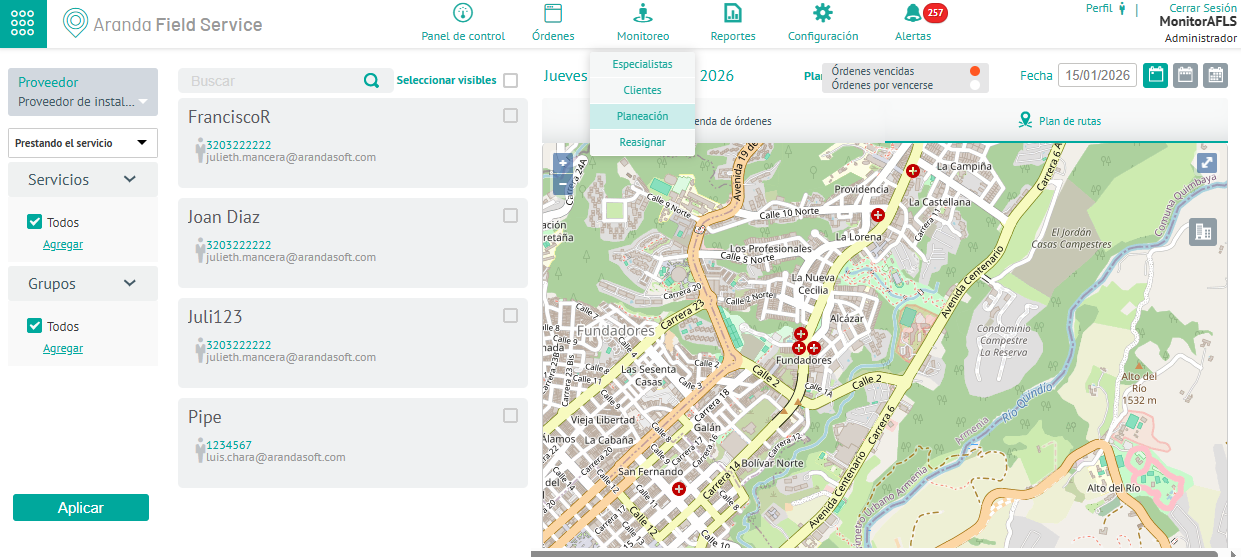
3. In the information view, select one of several specialists in the field, and in the detail view, you can view and track the distribution of orders in a day, week, or month and determine the time management of specialists.
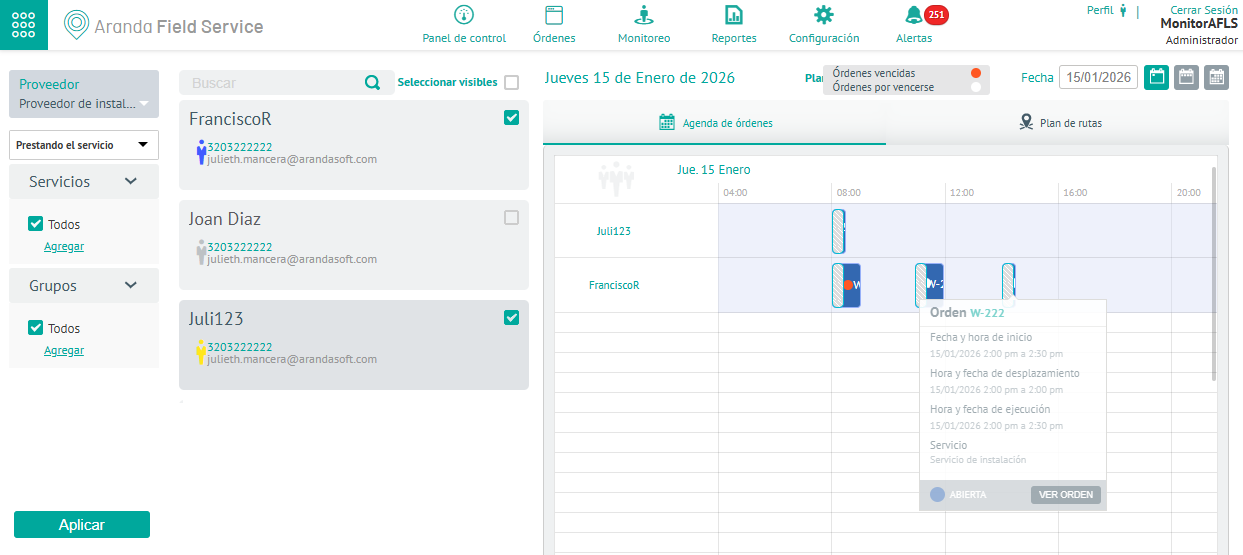
Filters
4. In the information view of planning monitoring, you can use the filters by provider, services, and groups. Click the Apply. You can filter the query information under the following criteria:
| Criterion | Description |
|---|---|
| Supplier | The monitor will only be able to view the vendors assigned to it, so it will be able to filter the specialists only by those vendors from the selector. |
| Specialist availability | This criterion filters the specialists according to the following conditions: - Specialists paying attention to one of the configured services, who have work orders assigned to them. - Specialists with skills to attend to the services configured, available and with the capacity to attend the service. |
| Services | This criterion filters the specialists according to the service they are providing or for which they are trained and that they have the service or services configured as a consultation criterion. The service filter depends on the configuration defined in the previous specialist availability combo. |
| Groups | This criterion filters the specialists according to the group to which they are associated. |
5. When you select a specialist from the generated records, in the detail view you can display the order information in the tabs: Order Schedule and Route Plan.
Order Schedule
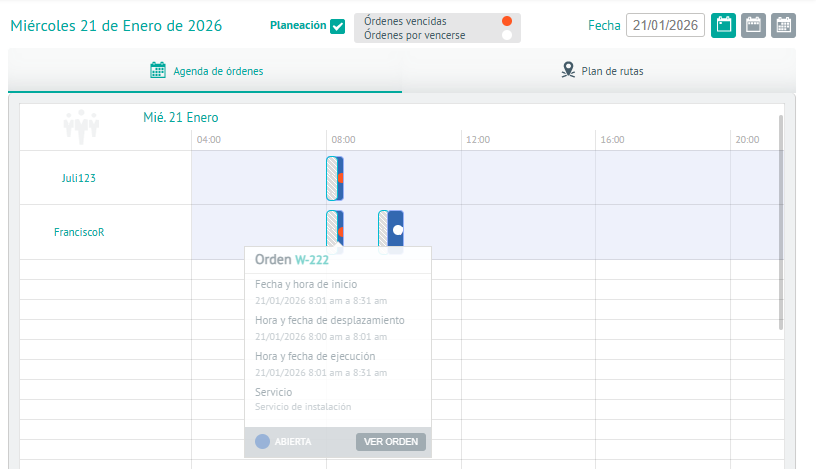
6. On the Order Schedule You will be able to view the load assigned to each selected specialist on an open work order. The information you can analyze in the glider is as follows:
| Conventions | Description | Graphic |
|---|---|---|
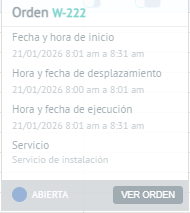
| Work Order | The work order summary is displayed as a number, data associated with the workflow phases in status transitions such as Shift Start, Scheduled Time of Execution and Completion of the Work, Assigned Service. - By selecting the View Order You will be able to access the selected order. - The color in each of the orders represents the state in which it is located. |
 |
| Blank Space | This section represents the times in which the specialist can attend to work orders. |  |
| Striped Pattern | The section represents the scheduled times where the specialist must travel to the place of the next order. |  |
| Controls | This control organizes the information displayed on the glider by day, week, or month. |  |
Route Plan
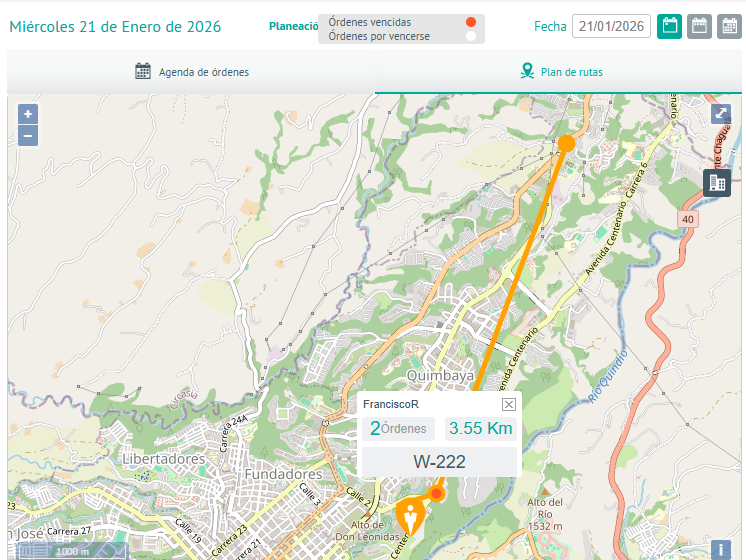
7. On the Route Plan You will be able to view the map with the planned route for one or more specialists and the positions in which they will be according to the selected date range. The information you can analyze in the glider is as follows:
| Conventions | Description | Graphic |
|---|---|---|
| Map | The monitor will be able to view the customer’s real-time location on a map and track orders that are automatically updated. | |
| Work Order | Selecting the specialist’s point of care or position enables order information such as the specialist’s name, distance to the next point, and remaining orders. The distance to the next point is shown in a linear fashion, this value may vary if the user selects the option to present the route with the Google option. | 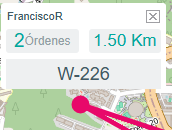 |
| Controls | This control organizes the information of the route plan that is displayed in the glider, by day, week or month. | |
| Enlargement | The monitor will be able to Zoom in or Expand the map for a better view. |  |
If the selected specialists match in one or more locations, the user can click on the common point to separate them and see which users have positions in that point.
⚐ Note: The positions in which the specialist will find himself are the positions of the work orders assigned to him.
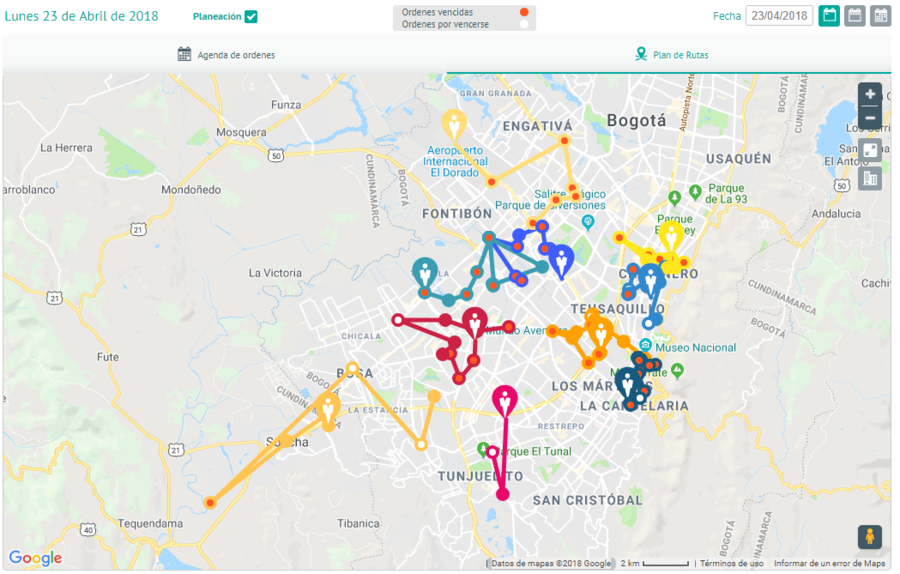
⚐ Note: The specialist’s location points will be visible only if the specialist has orders assigned for the selected date range.