


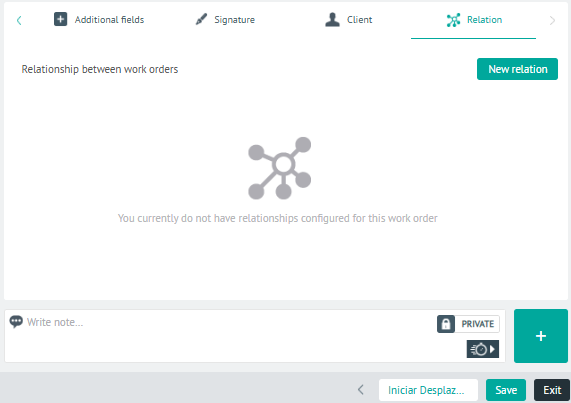
1. In the Detail View of the created work order, select the Relation, where you can link 2 or more work orders. Click the New relationship
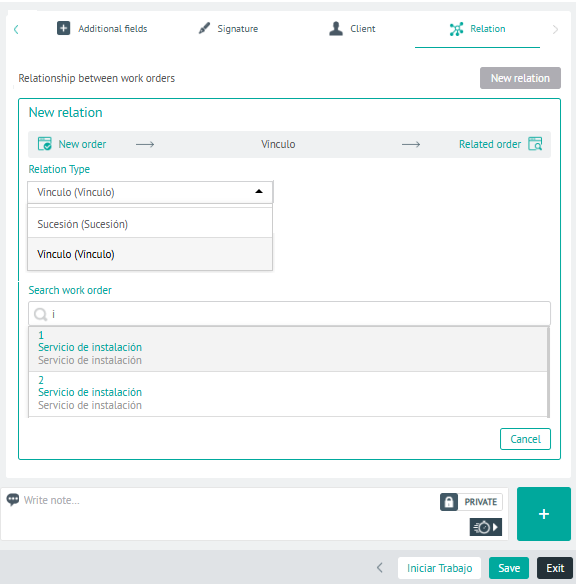
2. In the New Relationship section, select a relationship type:
- Succession: It means that it is necessary to attend to another work order before attending to the order on which the relationship is being made.
- Link: It means that orders are related, no matter the order in which they are served.
3. Refer to the work order associated with the configured service.
⚐ Note: The relationship types available in this instance are defined during AFLS Relationship Settings
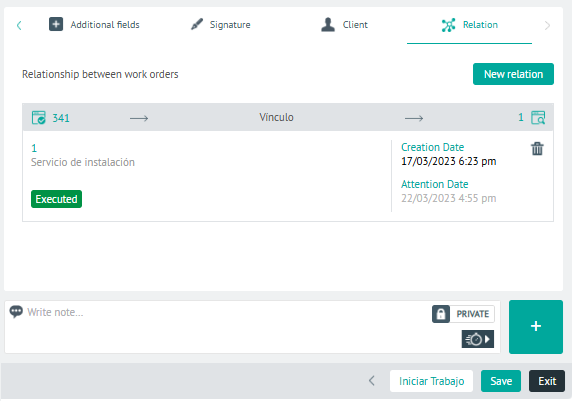
Once the relationship is created, the defined link and the status of the associated work order are displayed.
2 In the relationship detail view, you will have the field for add Private or Public Notes.
3. When you finish relating the work orders, click Save, to confirm the changes made.