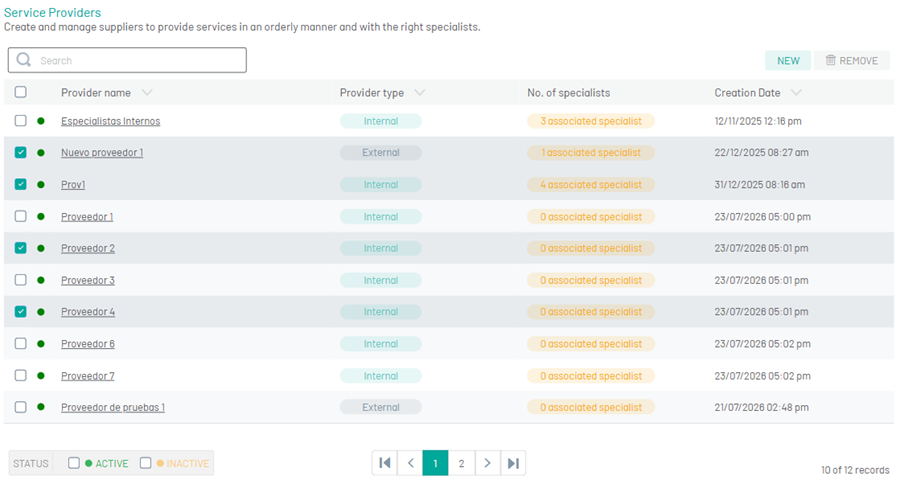
Suppliers are the entities that supply specialists in the field to attend to work orders according to the specific areas and services to which they are dedicated. It is possible to customize its operation according to the configuration options.
Creating a Supplier
1. To create a provider, go to the AFLS configuration console, in the Administration from the main menu, select the Suppliers and the New; in the Authoring View you can configure each vendor with the following information:
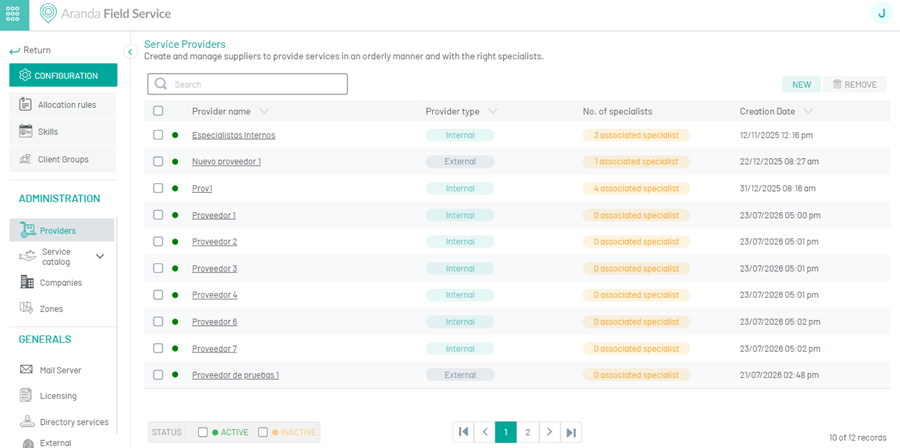
| Options | Description |
|---|---|
| Provider Name: | Identify the supplier. |
| Description: | Allows you to enter additional information about the provider. |
| Score for the last 30 days: | It allows you to visualize the supplier’s qualification, response, and compliance score. |
| State: | Allows you to configure the status of the provider, whether it is active or inactive. |
Selecting the Supplier Type
2. When creating or editing a provider, the user will be able to define the type of provider to be configured. The selection of the provider type defines the types of agreement that apply to the provision of services, these are:
- Internal: WAVE (Operational Level Agreement) for internal suppliers. These are agreements negotiated within the company, which identify the levels of service that are expected (e.g., response and resolution times).
- External: UC (Underpinning Contract) for external suppliers. These are the obligations of external suppliers who provide services to the company and are documented through contracts.
Assigning Specialists by Provider
3. When creating or editing a vendor, the user can define two types of specialist assignments for a vendor:
Manual Specialist Assignment: When an order is assigned to the vendor, the specialist-specific assignment is not done automatically by the assignment engine, but by a user with order editing privileges (dispatcher or monitor) manually chooses the specialist to fulfill the order.
Automatic assignment: The assignment of specialists is done automatically, choosing the specialist who, according to their availability and skills, is the best option. This option is the one selected by default when new suppliers are created.
Importance of the supplier
4. When creating or editing a vendor, the user will be able to define the preference or priority that is assigned to a vendor for the taking of service orders that are assigned by Public Distribution.
The priority types are High, Medium, and Minimum.
A vendor with High priority will be able to display a work order in the “Available Orders” before the important suppliers Stocking or Minimum.
Example: By default, a supplier of importance Loud You can see the order 10 minutes before the major suppliers Stocking and 20 minutes before the others. That time can be adjusted in the database settings: DeltaMinByProviderPriority
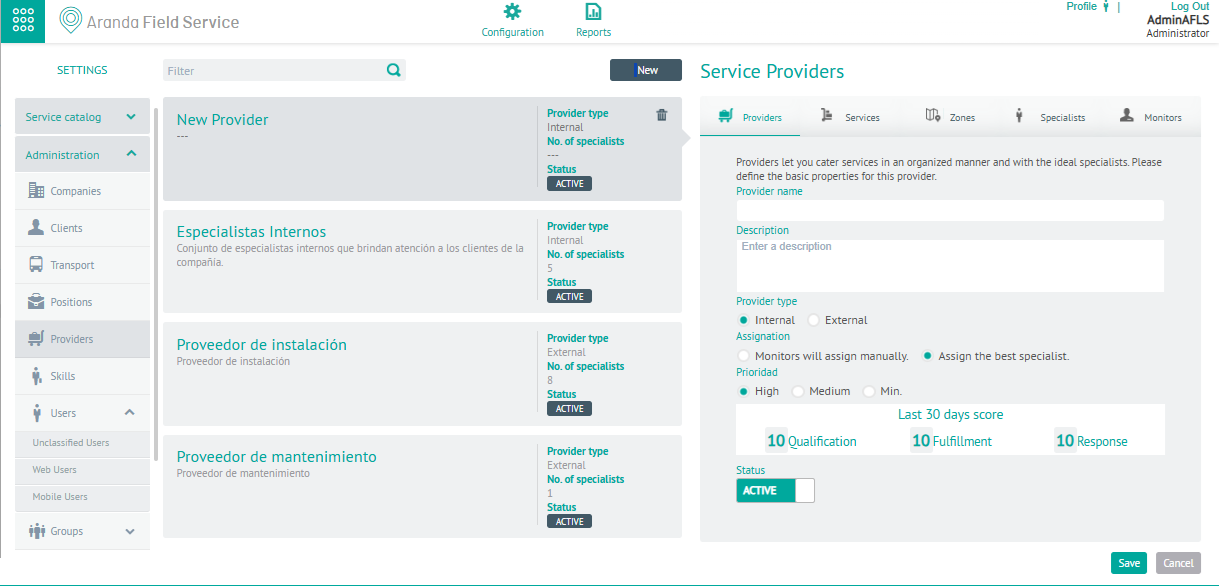
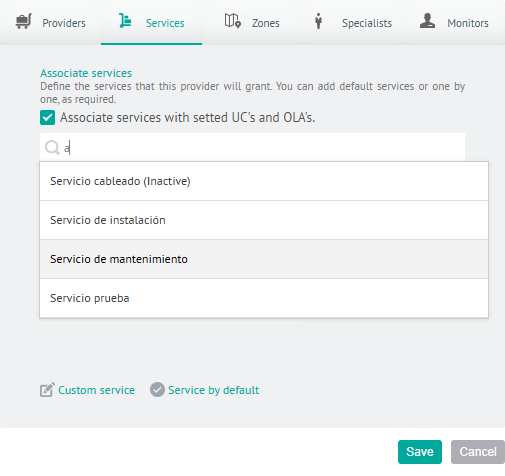
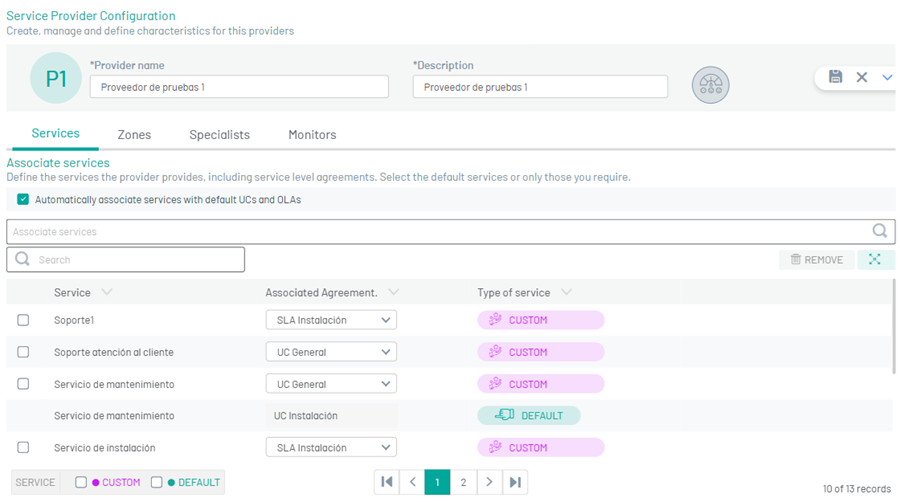
5. In the Provider Detail View in the AFLS Configuration Console, select the Services, where you can associate services previously configured in Aranda FIELD SERVICE, to a supplier. In this way, the supplier will appear available to attend to the service or services that are associated with it.
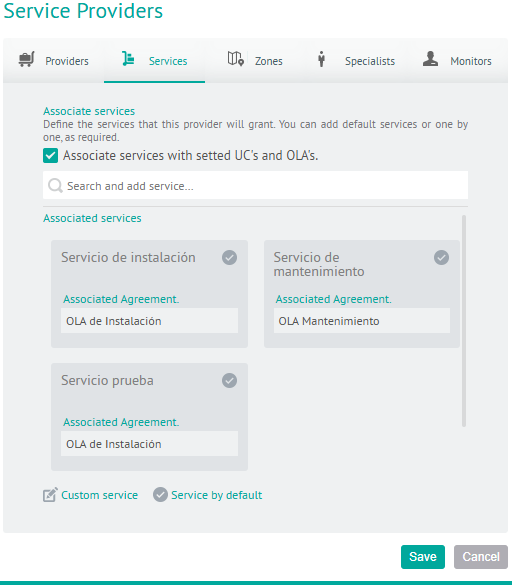
A search field is enabled in the Services tab where you can view and select existing services that have been previously configured with an agreement WAVE or UC in the Service Catalog Configuration module. (Selection of these agreements is not mandatory.)
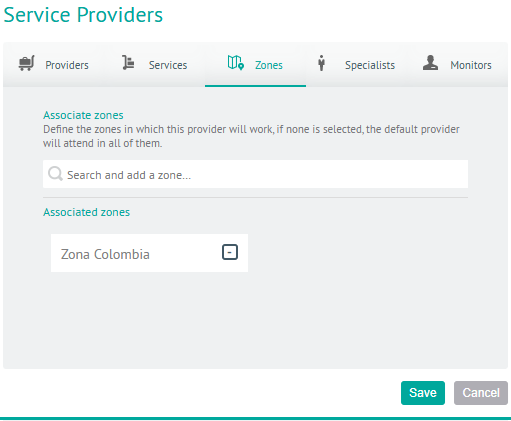
6. When creating or editing a vendor, select the Areas, to associate the areas in which the vendor will be able to fulfill work orders.
On the Areas, you will find a search field that will allow you to consult and select the zones configured in Aranda FIELD SERVICE (AFLS). When you choose a zone and click on the Associate, it will be automatically added to the list. You can also delete the selected zones to restrict the vendor’s management of work orders in those areas.
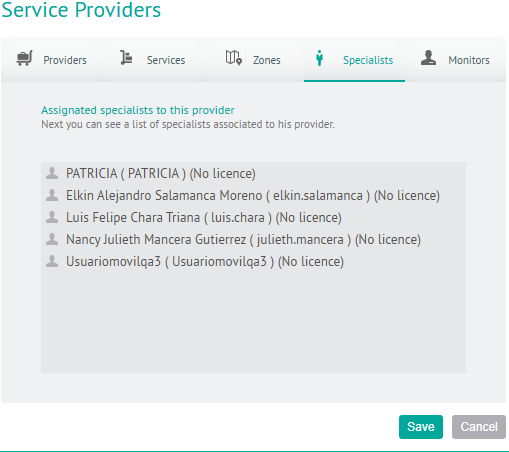
7. In the Provider Detail View in the AFLS Configuration Console, select the Specialists, where you can define the specialists assigned to a vendor.
This option is for consultation only and only specialists who have been associated with the provider in editing from the option to create Mobile Users (Specialists) can be viewed.
Information about the specialist’s status will also be displayed, indicated by a colored dot next to the name (green if active, orange if inactive) and, in the column License, a label with the assigned license type when the specialist has one.
8. In the Provider Detail View in the AFLS Configuration Console, select the Monitors, where you can define the monitors assigned to a vendor.
You can associate web groups or web users with the “Monitor” role to a specific vendor so that they have access to reports, orders, specialist settings, and mobile groups, as well as Specialist, Customer, and Planning monitoring, that relate to that vendor.
Monitors, in turn, will have the option to perform filters by vendor on the screens mentioned above.
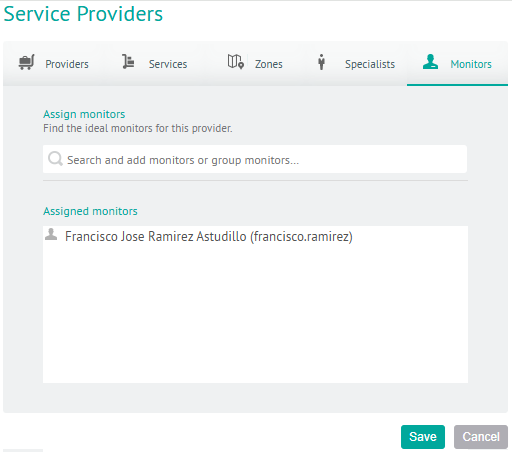
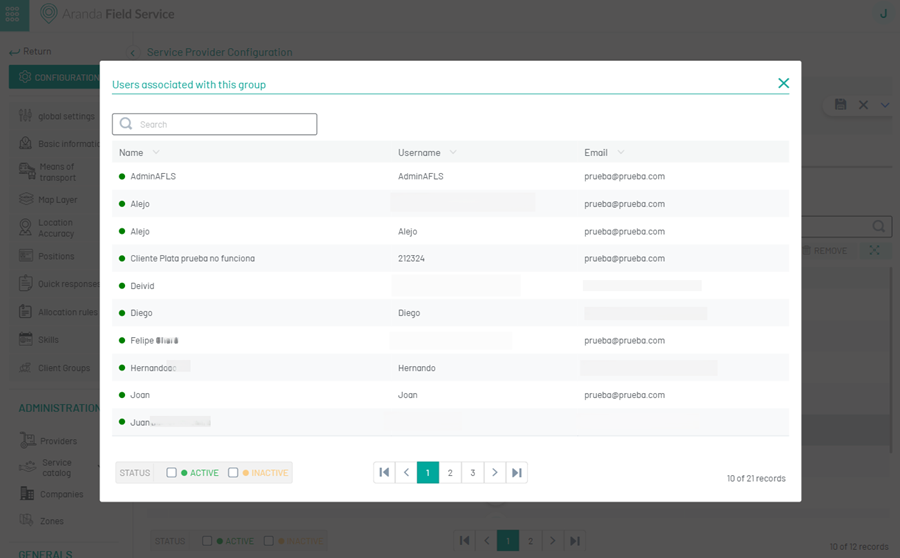
When you add a web group with the monitor role with more than one user, you can select the number and display a list of users associated with this group.
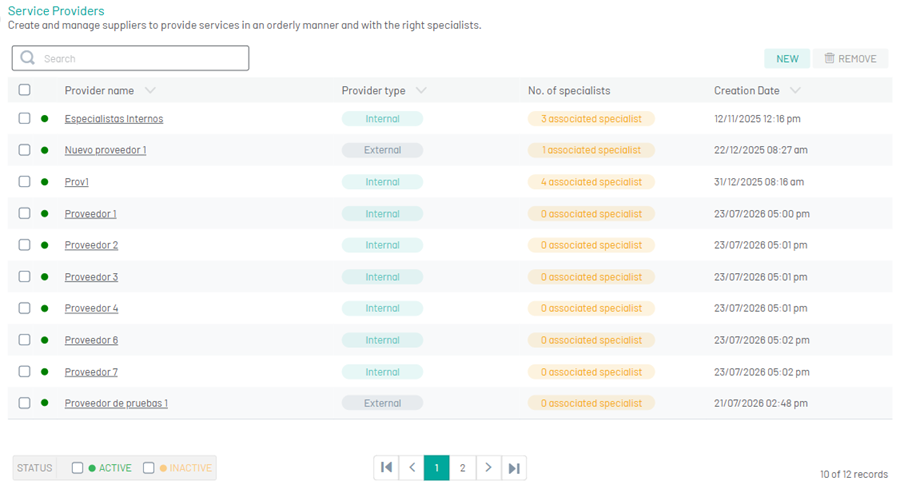
9. To edit a vendor, in the vendor configuration list, select the name of the record to be edited; in the detail view you can modify the required information.
10. When you finish configuring the provider, click Save  to confirm the changes made.
11. To delete a vendor, in the vendor configuration list, select the check for one or more records and select the button to delete the associated information.