


Tasks are activities scheduled by the dispatcher, which are loaded when selecting a service and the field specialist resolves according to the instruction. These tasks are ordered consecutively for your attention
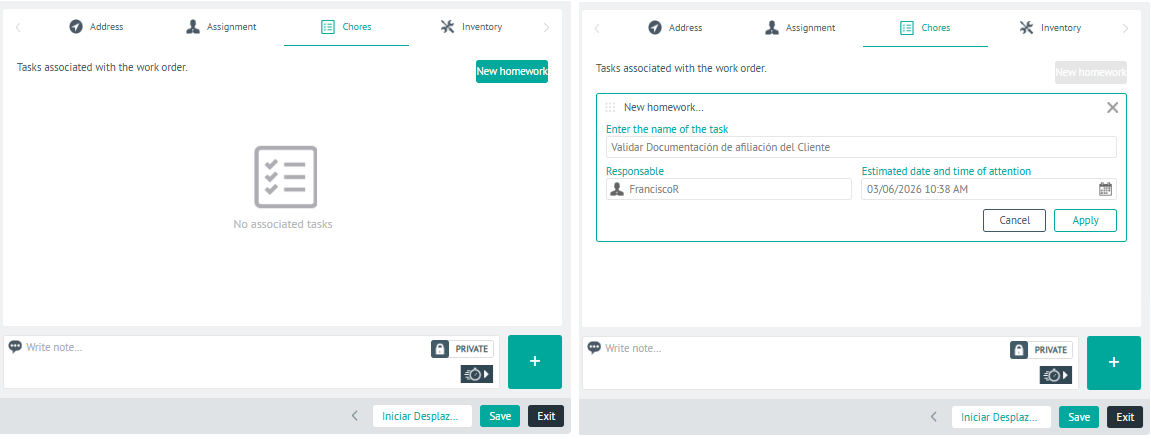
1. In the Detail View of the created work order, select the Tasks and the New Task, where you can define the name of the task, the responsible specialist and the estimated date and time of attention of the order.
⚐ Note: The time interval for calculating the time of the tasks is taken taking into account the number of minutes configured in the database, the setting information WorkOrderTaskConflictMinutes by default it is 5 minutes. (It is recommended that the setting configuration be done in multiples of 5)
2. When defining the task, click on the gate Apply. You will be able to view the generated task and for each task you will be able to execute actions such as Edit or Delete  the configured item.
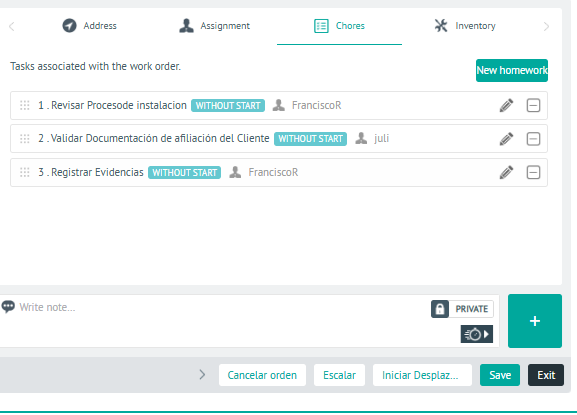
Edit Tasks
Tasks that already come from the service, and those that have just been created, can be edited depending on the status of each task and A switch control will allow you to make the change of status if required. like this:
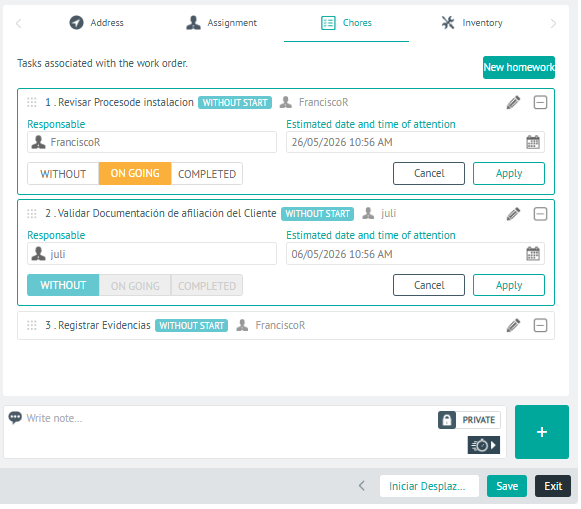
| Task Status | Editing Permissions |
|---|---|
| WITHOUT STARTING | - Assign the person in charge, date and estimated time of attention. - Change the status, if it is the current task. - Move the task to change the order, only if the previous task is WITHOUT STARTING. - Allows the task to be detached from the work order, if it is in a state WITHOUT STARTING. |
| LET’S GO | You will be able to change the status of the task to FINISHED. |
| FINISHED | You will not be able to make adjustments. |
⚐ Note: If a work order has no supplier and has a service with tasks, you can reorganize, disassociate or rename the tasks, but you cannot assign assignors or set dates and times.
⚐ Note: To allow automatic assignment of tasks associated with a work order, during global configurations, Automatically assign tasks to the work order specialist..
⚐ Note: The adjustments made to this task list (Add, Rearrange, or Detach), do not affect the tasks originally configured in the service.
3 In the task detail view, you will have the field for add Private or Public Notes.
4. When you finish setting up the tasks in the order, click Save, to confirm the changes made.