


The Quick Responses module allows the administrator to pre-configure a set of responses and information that dispatchers and field specialists can use to streamline the day-to-day operation of work orders.
Create Quick Replies
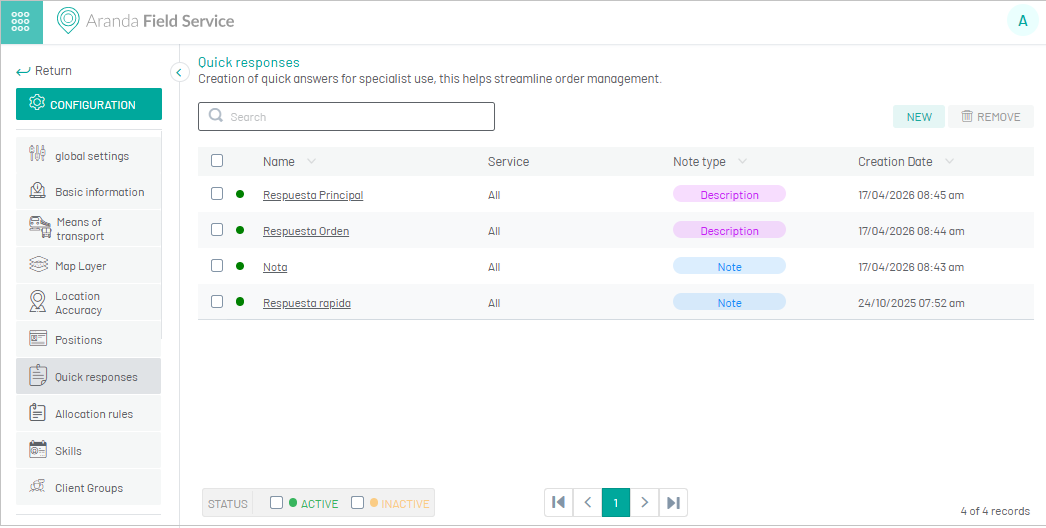
1. To create Quick Replies, go to the AFLS configuration console, in the Configuration from the main menu, select the Quick Answers and click the NEW.
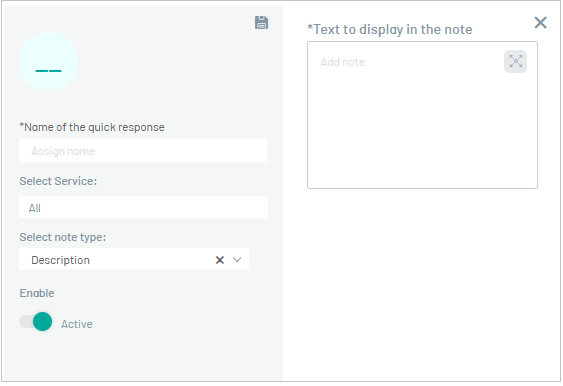
2. In the Quick Replies detail view, you can fill in the following information:
| Options | Description |
|---|---|
| Quick Response Name | Enter a name for the quick response that the specialist can use. |
| Select Service | Configure all or a specific service to which you apply this quick response. |
| Select Note Type | Select the note type from the response: - Description: Comprehensive description of the situation. Only the dispatcher can use it, or Note: brief description of the situation. It can be used by the dispatcher, the monitor, and the specialist. |
| Text to be displayed in the note | Enter the visible information of the quick response. |
| Activate | Allows the creation of the active or inactive quick response. |
⚐ Note: In the text to be displayed in the note, you can use data tokens such as the order number {{WorkOrder}}. For more information, please visit the Using Tokens in Email Templates.
⚐ Quick Response Example: Dear user, {{WorkOrder}} 36, is about to be answered.
3. When you finish setting up Quick Reply, click Save  to confirm the changes made.
⚐ Note: The user is responsible for creating or registering a predefined text and defines the conditions under which the text can be applied to respond to a note in a work order.
Edit Quick Replies
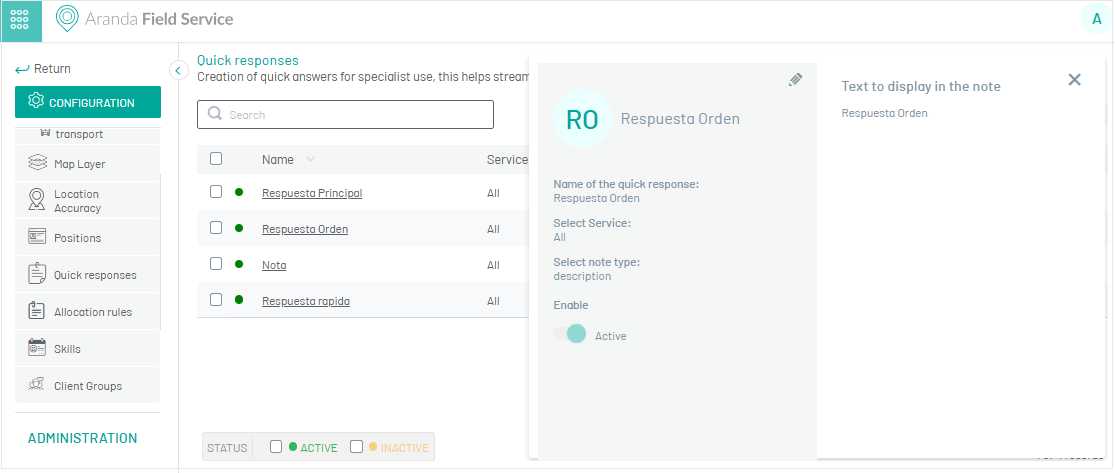
4. To edit a quick reply, in the AFLS Settings information view, select the name of the record you want to edit, the detail view is enabled, and selecting the edit button  You may modify the required information.
Delete Quick Replies
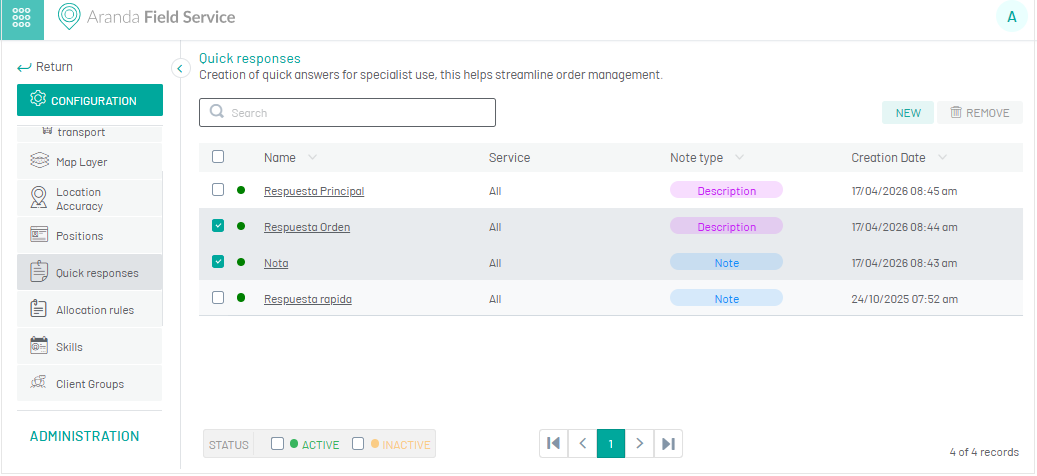
5. To delete a quick reply, in the quick reply configuration list, select the check of one or more records and select the button to delete the associated information.
Quick Responses in Work Order Management and Attention
When managing a work order, the dispatcher, from the AFLS web console, In the description of the tasks to be executed in the work order or expand the characteristics of the service, you will be able to view and add quick answers (description type or note type), which serve as support in the service service.
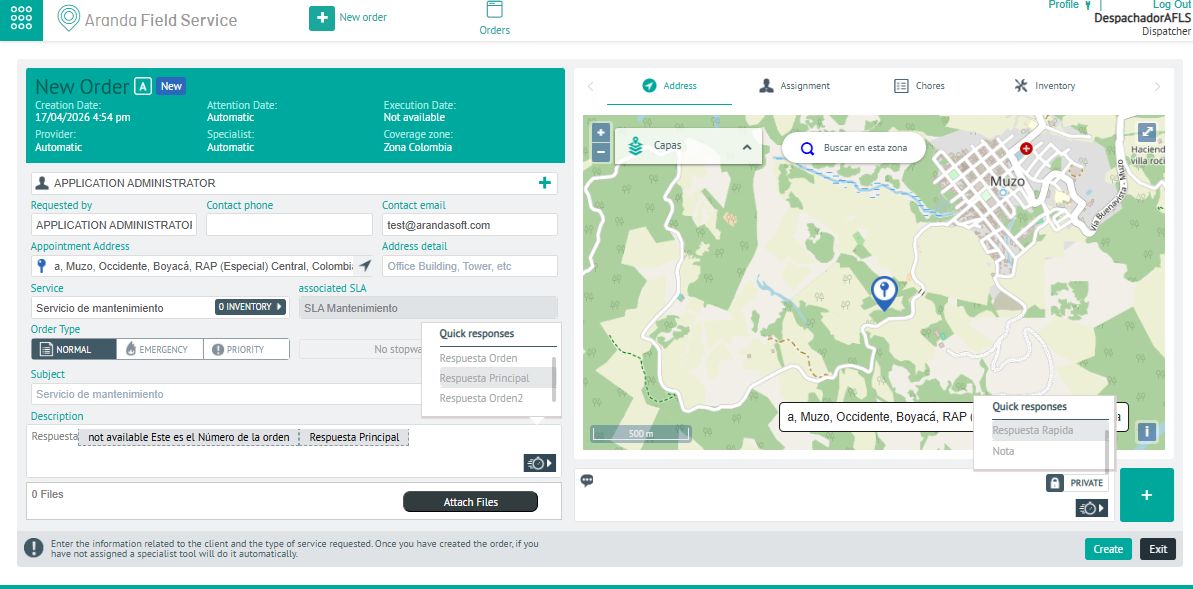
By adding notes during the attention of the work orders, the field specialist, from the mobile console, will be able to visualize in the work orders the quick responses that apply to the service that has been assigned, and can use them to speed up the process.
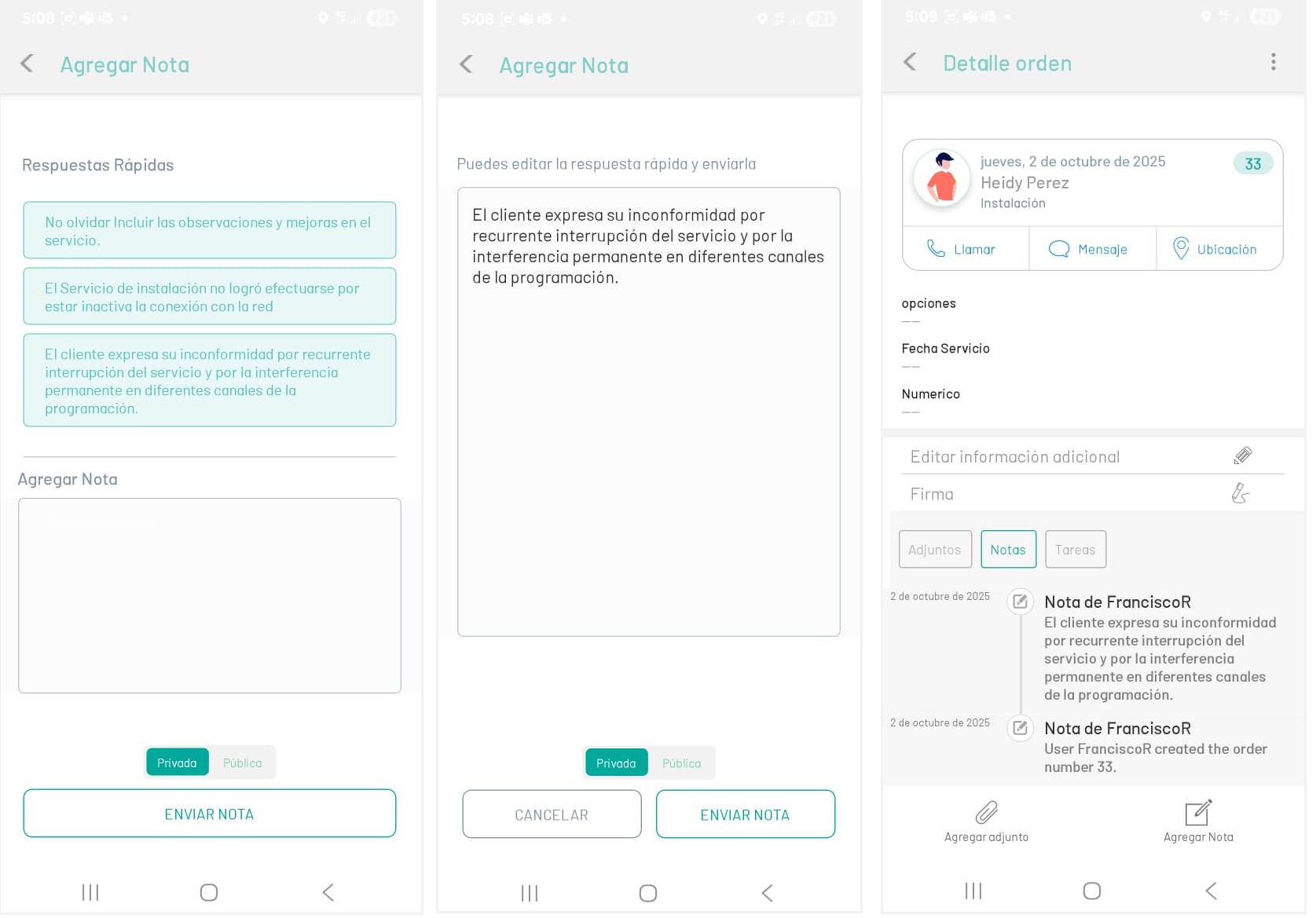
⚐ Note: Dispatchers and field specialists may do the following:
- Visualize in the first instance the quick replies that are used most frequently.
- Use multiple quick replies at once.
- Use Quick Replies on your mobile console while in “Offline” mode.
- Remove a quick reply from the list.
When you select a quick answer within the control, it appears, replacing the tokens with the values of the case.