


The AFLS web console has a designer for the creation of reports, a tool used to graphically model queries based on work order information, configuring parameters, filtering data, to present indicators required by the organization.
View Report Designer
1. To view AFLS reports, with the required role, log in to the AFLS web console, in the Reports from the main menu; The report designer is enabled where you can customize the information generated. The following describes the most representative elements of the report designer and their initial scope.
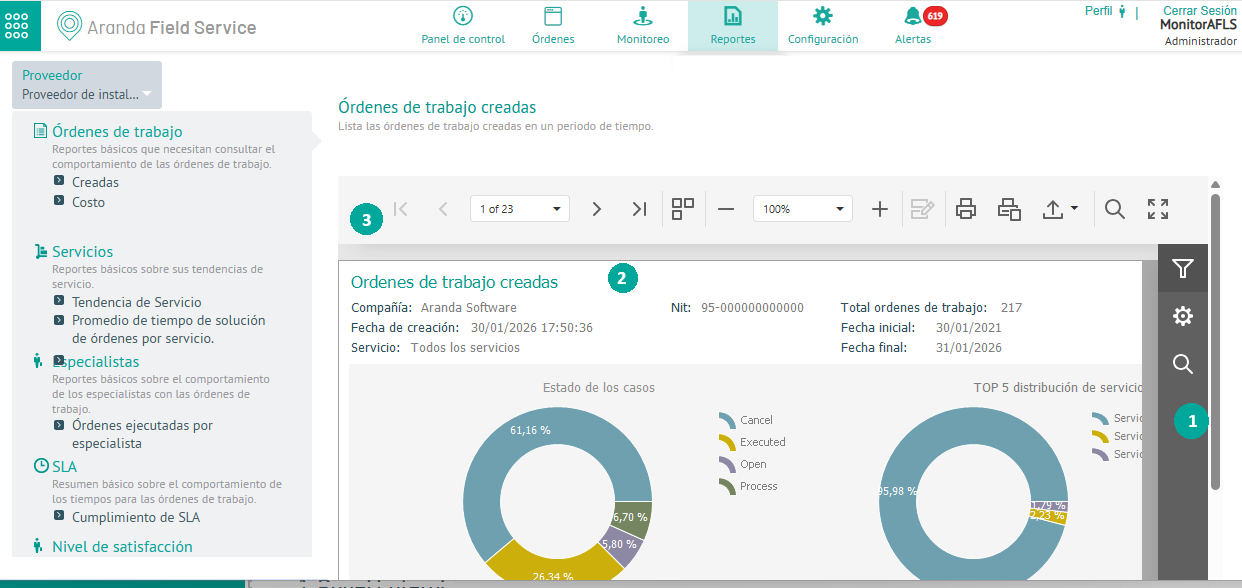
1. Side Panel
This section will have design tools to customize the report and configure different features and relate information for later viewing. The Side Panel groups different options that define actions such as:
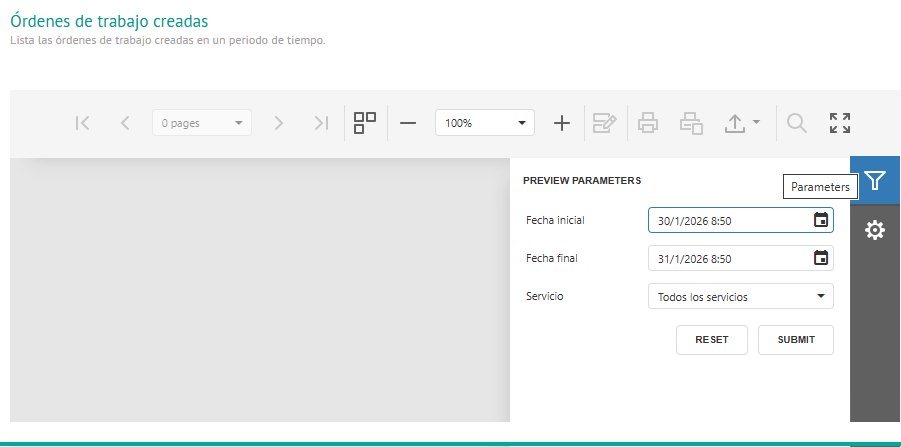
Display Parameters
This option allows you to customize properties of the report indicators for different instances of the work orders with parameters such as date, type of service, company or survey and according to the filter activated to generate the report.
When configuring the Display parameters, click the SUBMIT to generate the report in the workspace.
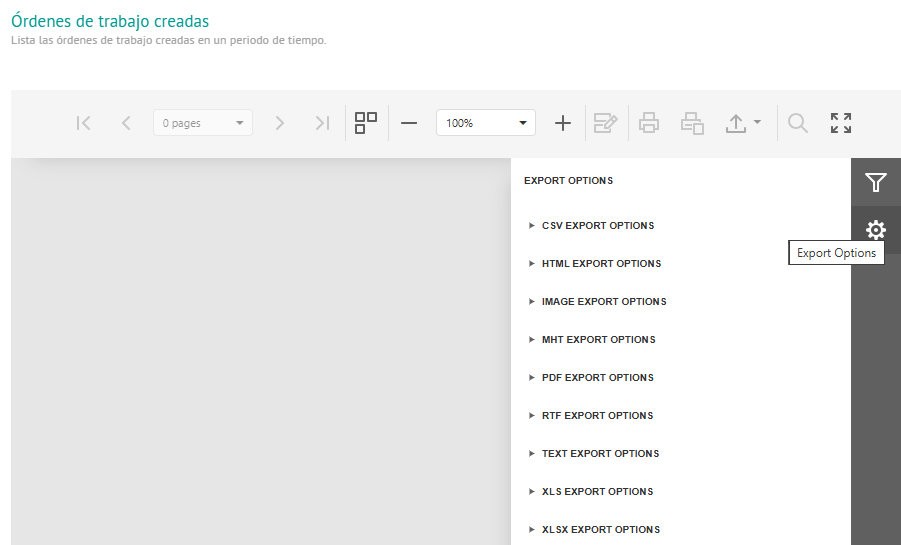
Export Options
This item allows you to configure the export options for each format (CSV, HTML, IMAGE, MHT, PDF, RTF, TEXT, XLS, XLSX, DOCX,).
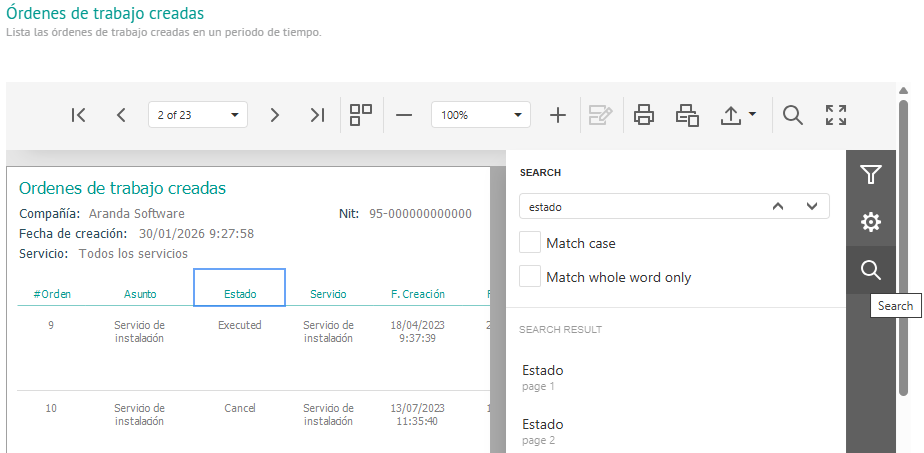
Seeker
This item allows you to search for information on the generated orders.
2. Designer’s Workspace
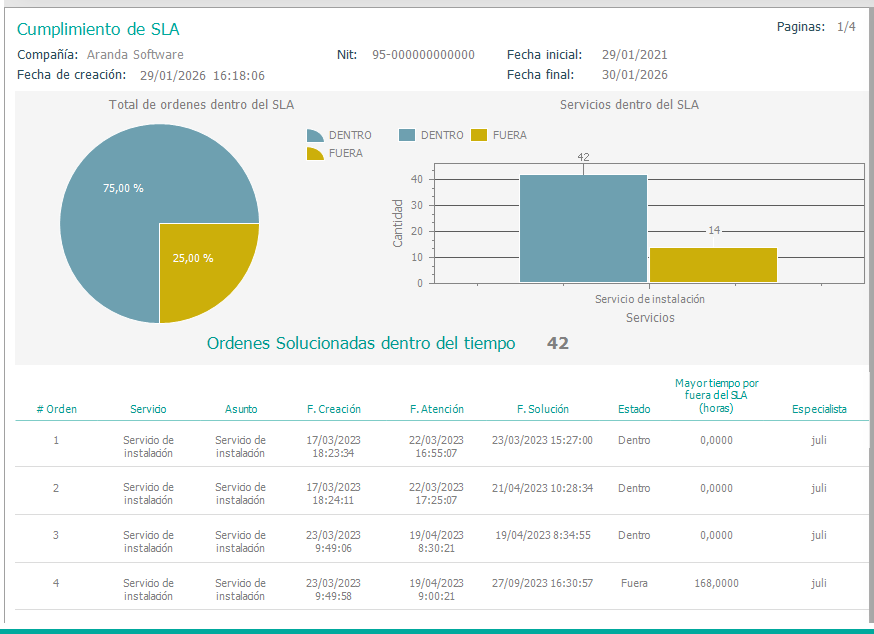
In the workspace, you can view a graphical proposal and the detailed information of a report configured with the defined display parameters.
3. Main Toolbar
The main toolbar of the designer allows you to edit and customize the reports according to each selected control. The commands used for editing the report are:
| Taskbar Options | Description |
|---|---|
 |
The Paging option allows you to scroll through the report through paging options (First, Prev, Next, Last or List of Report Pages). |
 |
The Multipage option allows you to view the report in multipage mode. |
 |
The Zoom option allows you to enlarge or reduce the size of the report. |
 |
By using this option you will be able to print the entire report. |
 |
By using this option, you will be able to print a page of the report. |
 |
With this option you can export the generated report in formats such as PDF, XLS, XLSX, RTF, DOCX, MHT, HTML, Text, CSV, Image. |
 |
This option enables the toolbar search engine, where you can consult the information required in the generated report |
 |
This option allows you to view the generated report in full screen. |