


Notes in AFLS can be managed by dispatcher or monitor from the web console or by the specialist from the mobile app.
1. In the Detail View of the created work order, select a configuration tab (Direction, Assignment, Tasks, Inventory, Costs, Comments, Timers, Alerts, Additional Fields, Customer Signature, and Relationships) where you will have the Add Note field enabled.
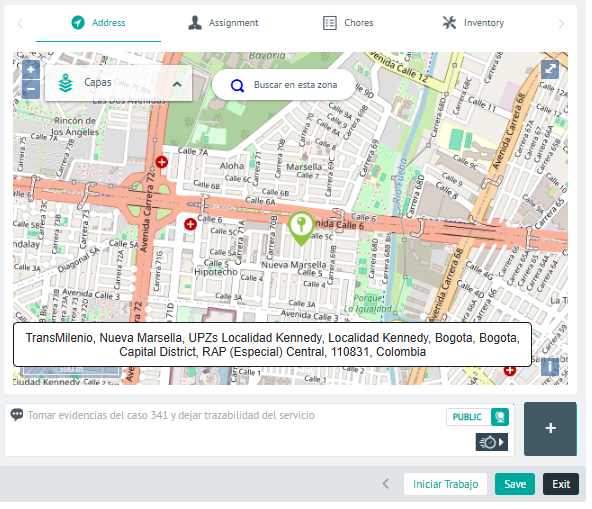
2. In this section, you can also add notes and notices that help the field specialist develop the work order. Add the note or a quick reply.
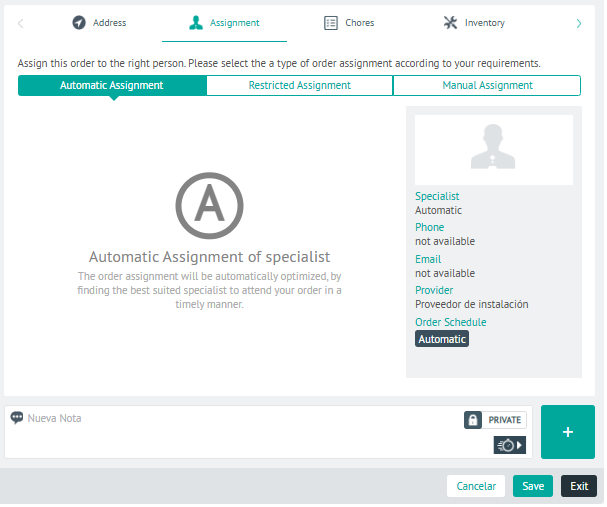
3. Define and activate the switch type button, the command note type:
- PRIVATE Note that it will only be visible to specialists and will be active by default.

- PUBLIC Note that it will be visible to all users, including those in the AssistMe console.

Quick Answers
4. In the notes field of a work order, you can view and add quick replies (description type or note type), which serve as support in the service service. 
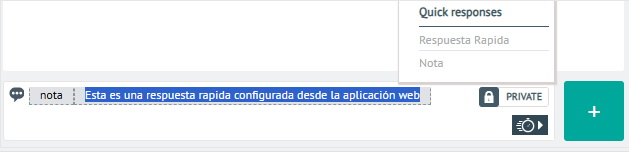
⚐ Note: The quick responses available in this instance are defined during AFLS Quick Reply Settings
⚐ Note: Field specialists from their mobile device will be able to View notes or comments created by the dispatcher or monitor from the web console when creating the work order or creating the notes directly.
5. When you finish defining the work order notes, Add  , to confirm the changes made.
⚐ Note: After you create a public note, it is emailed to the end user and is visible in the AssistMe console.
⚐ Note: The generated notes will be visible in the Work Order Comments category in the field specialist’s mobile app.