


Mail templates in AFLS are a personalized guide to the messages that will be sent to the customer to inform them about the status of work orders.
Create Email Template
1. To create an email template, go to the AFLS Configuration Console in the Configuration from the main menu, select the Mail templates and the required category (General, Surveys, SLA, UC, OLA, AssistMe).
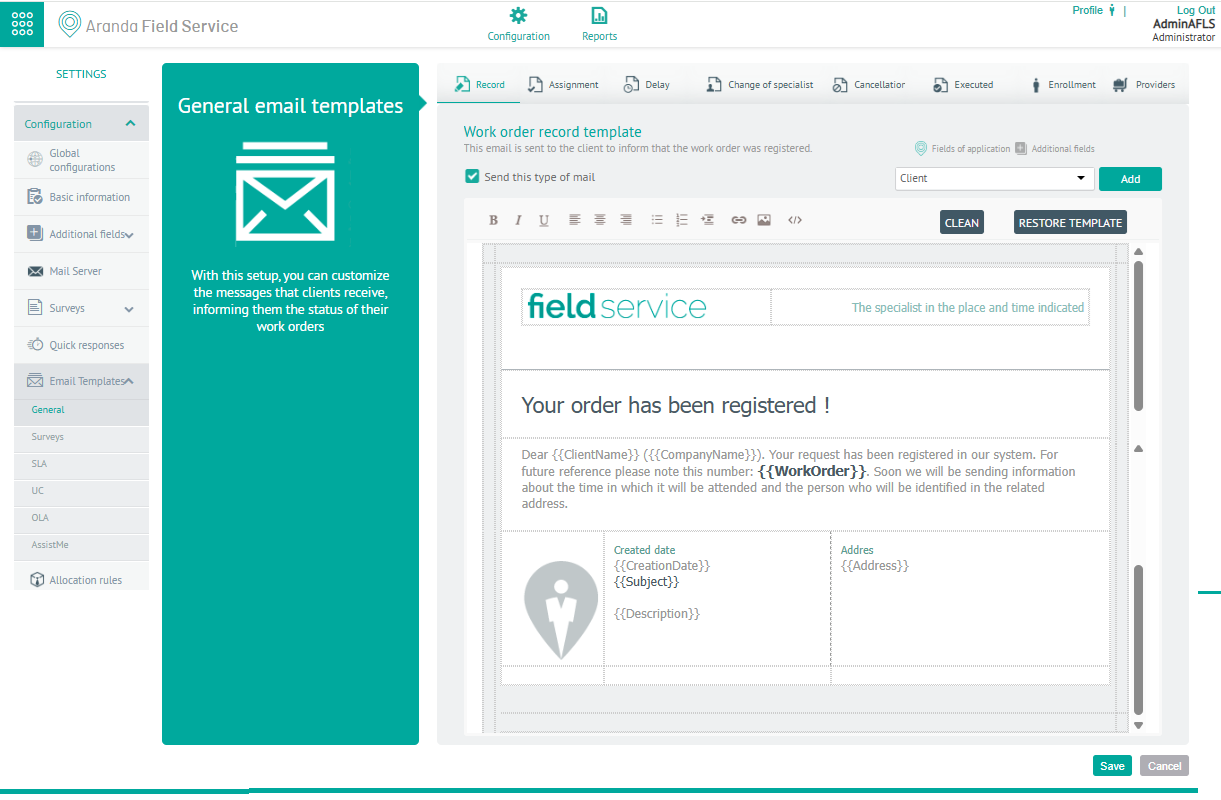
2. In the Detail view of a category by selected mail template, you can find information about customizing messages in the following settings tabs:
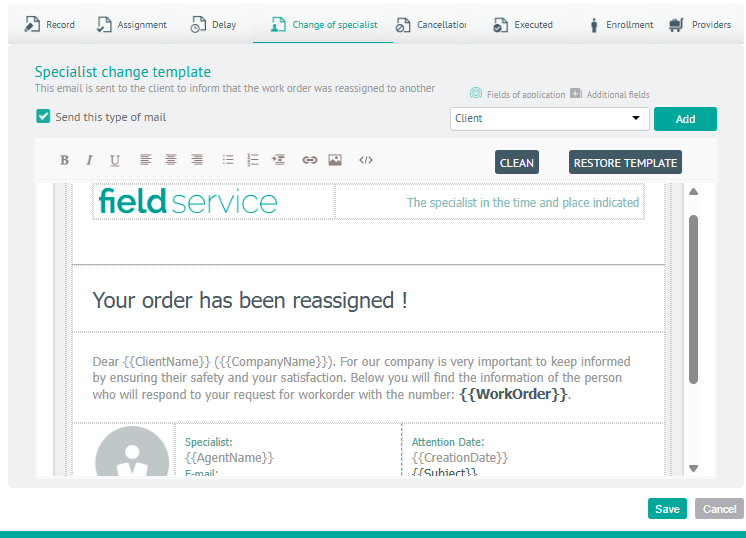
General tab
| Email Templates | Tabs by templates |
|---|---|
| General | - Registration: Sent to the customer as confirmation of receipt of a new work order. - Allocation: Informs a customer of the date and the person responsible for handling the case. - Delay: Sent to the client when the specialist is unable to keep the appointment. - Change of specialist: It is sent when an appointment has been modified to inform the customer of the new person who will attend it. - Cancellation: Sent to the customer when a work order is canceled. - Executed: Sent to the customer when an order has been successfully completed. - Link: Sent to specialists so they can easily link their devices. - Suppliers: Sent each time an order is created, or reassigned to a vendor. |
Surveys tab
| Email Templates | Tabs by templates |
|---|---|
| Surveys | - Satisfaction Survey: Sent to clients after the execution of a service has been completed. It contains a link to the page where the survey is located. - Satisfaction Level Alert: Sent to customer satisfaction monitors when a survey is below the minimum allowed. - Survey Measurement Notification: This is a periodic report email that is sent to the monitors so that they know the level of general satisfaction. - Survey summary notification: This is a report email that is sent to the customer as a summary after they have scored the survey. |
SLA Agreements, OLA UC Tab
| Email Templates | Tabs by templates |
|---|---|
| SLA-UC-OLA Agreements | - Revision- Template for the email that will notify you when the revision date configured in the SLAS is met. - Ending- Template for the mail that will notify you when an SLA is about to end. |
AssistMe Tab
| Email Templates | Tabs by templates |
|---|---|
| AssistMe | - AssistMe User Account Notification: Informs the end user of the login details and URLs for AssistMe access. - Registered Order Notification from AssistMe: Notifies users of the creation of a new request registered from the channel. - User data verification: Notifies that the user has registered for the channel. - Reset password: Sends the user the link to reset the password. |
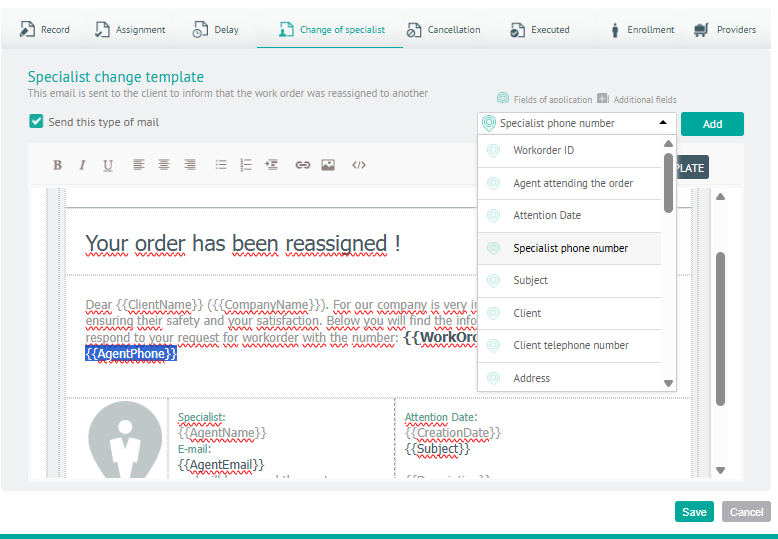
3. Once you have selected an email template category (General, Surveys, SLA, UC, OLA, AssistMe) and a settings tab, you will have common message customization options enabled, such as:
| Customization Options | Description |
|---|---|
| Send mail | You can choose whether or not to send mail. |
| Application Fields (Tokens) / Additional Fields | You can select the predefined application fields (tokens) or the additional fields configured in AFLS to optimize the template. For more information, please visit the Using Tokens in Email Templates. 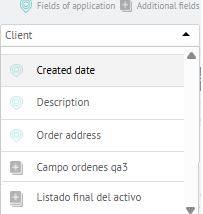 |
| RESTORE TEMPLATE | This option allows you to restore the template and leave the default one.  |
| CLEAR | This option deletes all records of the created template.  |
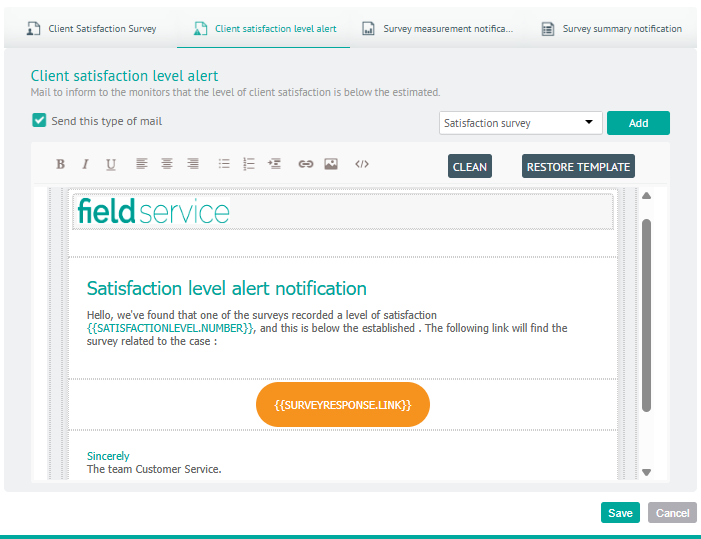
4. If you select a Token to include in the template, click the Add
5. Once the email template is finished, click Saveor Cancel if you don’t want to save your changes.